
guide
OutlandsID
Updated Dec 7, 2022
Summary
- Outlands is pleased to introduce OutlandsID: Players will now use a singular email-based login, known as an OutlandsID, and will be able to access all of their accounts from the same login screen
- Players will no longer need to remember individual account name + password combinations
- They will now also have access to instantaneous email-based Password Recovery for their OutlandsID, with additional features planned.
Setting Up OutlandsID
| Step One | 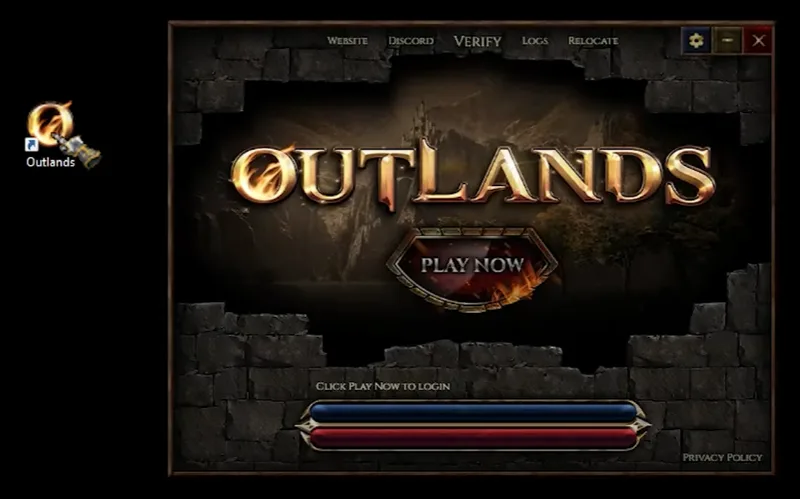 Run your launcher to download the latest Client (ClassicUO.exe) and Apply Patch. |
|---|---|
| Step Two | 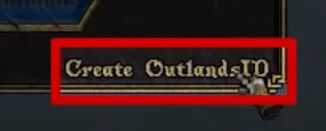 Click Create OutlandsID. |
| Step Three | 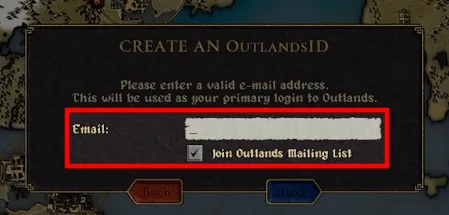 Create an Outlands ID by entering a valid e-mail address. |
| Step Four | 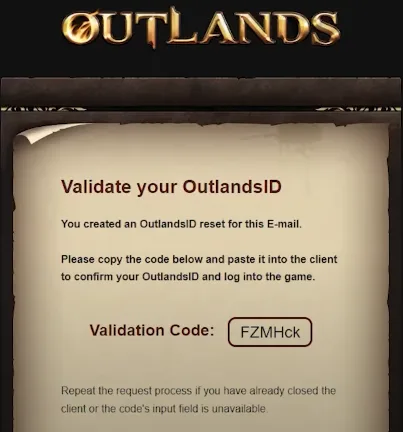 Access your e-mail and gather the Verification Code. |
| Step Five | 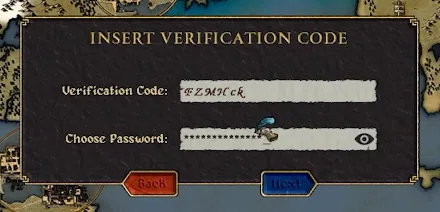 Insert your Verification Code, and choose your Password. |
| Step Six | 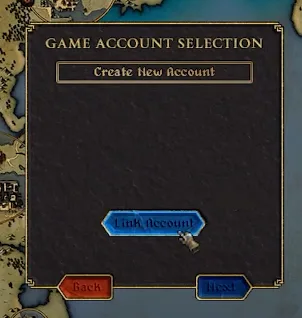 To Link existing accounts, click Link Account. Repeat these steps for all 3 accounts. |
| Step Seven | 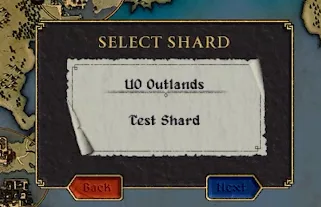 Select the shard you want to login to (UO Outlands or Test) and login as normal. |
Troubleshooting Issues
- If you have any issues with OutlandsID, feel free to contact a support member on our Discord or Forums for assistance.
- If your launcher is encountering an error (unable to create the Fonts directory), run your launcher as Administrator from the Outlands directory, or manually create the Fonts directory by hand and click Verify again.
Mentioned in official posts
- patchPATCH: QoL Updates, Distro Loot Bag, Container Gumps and more!Oct 12, 2026
- eventEVENT: The 8th Annual King’s FaireAug 24, 2026
- newsThe PvP Patch Has Arrived!Feb 25, 2026
- newsOutlandsID and Infrastructure UpdatesFeb 17, 2026
- patchPATCH: Holiday Dungeon Drops, Curio Dyes, and more!Dec 15, 2025
- patchPATCH: MAH Exemptions, Bug Fixes and More!Sep 15, 2025